Visualizzazione post con etichetta Microsoft. Mostra tutti i post

martedì 7 maggio 2024

Always Trust Certificate on Microsoft RDP for MAC

Issue


After updating my macOS to Sonoma 14.4.1 (23E224) I can no longer connect to Windows machines via "Microsoft Remote Desktop" version 10.9.6 (2188).

I click on the remote connection, and then "Continue" as usual....
... the connection change into connecting state, but it hangs ...
... and no connection will be established to the remote PC.

Solution


Open the connection, then click "Show certificate" and expand "Trust"
change options from "Use System Defaults" ...
... to "Always Trust".
Confirm the changes by entering the system password ... and click continue to establish the remote connection.
If it doesn't work right away. Close the "Microsoft Remote Desktop" application, reopen it and try connecting again. It should work without even showing the certificate.

That's it.

giovedì 11 aprile 2024

[MS Windows] - How to extend trial version

Issue


Working within a LAB and/or in a nested environment often requires the deployment a Windows Server Machines (for instance, for a local services such as Active Directory, DNS, NTP and so on).
It may happen that the tests have not been completed, but the Windows trial period has expired.
Below I'm reporting few steps to extend the Windows Trial Period for other 180 days.

Solution


It is possible to "rearm" MS Windows (in my case Server 2022), extending the Trial Period of 180 days for 6 times each time. Let's see how to do that ...

Taking a look at the desktop, we can see the countdown in the corner down right. In my case, the period is expired.
Let's "run as administrator" a powershell, and run ....

slmgr -dlv
.. as we can see above, we still have 6 shots (Remaining Windows rearm count).

.. then, we rearm Windows .. running the command below and verifying that the command complete successfully ..

slmgr -rearm
.. we must restart the server, performing in powershell "Restart-Computer" or ..

shutdown /f /t 0 /r

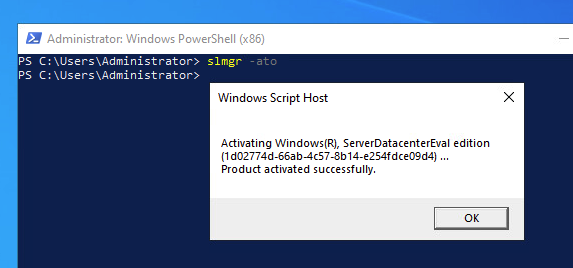
When the Server will be newly up and running let's check that everything worked fine, performing the following commands...
slmgr -dli
slmgr -ato
slmgr -dlv

That's it.