Visualizzazione post con etichetta PowerShell. Mostra tutti i post

mercoledì 15 gennaio 2025

[NSX] Export Segment list into Excel

Issue


Starting from a post I wrote some time ago; about creating Session Cookies on Powershell for authentication in NSX, [NSX] - API Authentication Using a Session Cookie on PowerShell.
I had to create a script to export the complete list of segments configured in NSX, with their Subnets/Gateways, Tier-1s, Tier-0s, IDs, Transport Zones.
Below few line of code to do that. The code is provided without warranty, use at your own risk.

Solution


The script looks like this:

###################################################################
# list_nsx_segments.ps1
#
# LM v. 0.8
#
# This script uses the "ImportExcel" library 
# https://www.powershellgallery.com/packages/ImportExcel/7.8.10
# If not present install: Install-Module ImportExcel
# 
# Input parameters: NSX_MANGER_FQDN
#		    NSX_Username
#		    NSX_Password
#

param(
    [string] $nsx_manager = '<NSX_MANAGER_FQDN>'
)

#Used to handle/skip certificates
add-type @"
using System.Net;
using System.Security.Cryptography.X509Certificates;
public class TrustAllCertsPolicy : ICertificatePolicy {
    public bool CheckValidationResult(
        ServicePoint srvPoint, X509Certificate certificate,
        WebRequest request, int certificateProblem) {
        return true;
    }
}
"@
$AllProtocols = [System.Net.SecurityProtocolType]'Ssl3,Tls,Tls11,Tls12'
[System.Net.ServicePointManager]::SecurityProtocol = $AllProtocols
[System.Net.ServicePointManager]::CertificatePolicy = New-Object TrustAllCertsPolicy

[System.Net.ServicePointManager]::ServerCertificateValidationCallback = {$true}

function createSession {
    $script:session = New-Object Microsoft.PowerShell.Commands.WebRequestSession
    $script:headers = @{}
    $script:nsx_uri = "https://" + $nsx_manager
    #$uri = $nsx_uri + "/api/session/create"
    $private:body = "j_username=$($nsx_user)&j_password=$($nsx_pass)"
    
    try {
        $response = invoke-webrequest -contentType "application/x-www-form-urlencoded" -WebSession $session -uri $($nsx_uri + "/api/session/create") -Method 'POST' -Body $body -usebasicparsing -Erroraction Stop
        $xsrftoken = $response.headers["X-XSRF-TOKEN"]
 
        #$response
        $script:loginSuccess = $true
        $script:headers.Add("X-XSRF-TOKEN", $xsrftoken)
        $script:headers.Add("Accept", "application/json")
        $script:headers.Add('Content-Type','"application/x-www-form-urlencoded')
    }
    catch {
        Write-Host "Failed" -ForegroundColor Red
        Write-Host "$($_.Exception)" -ForegroundColor Red
        write-host "Error Details:" $_.ErrorDetails.Message -ForegroundColor Magenta
        $script:loginSuccess = $false
    }
}

#If you want insert Credential on fly uncomment the three lines below here and comment the hardcoded credentials 
#$MyCredential = Get-Credential -Message "Insert $nsx_manager "
#$nsx_user = $MyCredential.UserName
#$nsx_pass = [Runtime.InteropServices.Marshal]::PtrToStringAuto([Runtime.InteropServices.Marshal]::SecureStringToBSTR($MyCredential.Password))

#Harcoded credentials; uncomment if you don't want to insert them with Get-Credential function
$nsx_user = 'admin'
$nsx_pass = 'VMware1!VMware1!'


#Create the cookie session 
createSession


$response_t0s = $null
$response_t1s = $null
$response_seg = $null
$response_tz = $null

#Query the Tier-0s
$response_t0s = Invoke-webrequest -WebSession $session -uri $($nsx_uri + "/policy/api/v1/infra/tier-0s") -Method 'GET' -Headers $headers -usebasicparsing -Erroraction Stop
if ($response_t0s.statuscode -eq '200') {
    #echo $response_t0s.Content #print Json format
    $keyValue_t0s= ConvertFrom-Json $response_t0s.Content | Select-Object -expand "results"
    $sheet_t0s = $keyValue_t0s | select @{Name='T0 Name';Expression={$_.display_name}}, 
                                        @{Name='ID';Expression={$_.id}}
} else {
    Write-Host
    Write-Host
    write-Host -ForegroundColor red " !!! Somenthing went wrong !!! "
    exit 9
}
#RAW data check
#$sheet_t0s | Sort-Object -Property "T0 Name" | Out-Gridview

#Query the Tier-1s
$response_t1s = Invoke-webrequest -WebSession $session -uri $($nsx_uri + "/policy/api/v1/infra/tier-1s") -Method 'GET' -Headers $headers -usebasicparsing -Erroraction Stop
if ($response_t1s.statuscode -eq '200') {
    #echo $response_t1s.Content #print Json format
    $keyValue_t1s= ConvertFrom-Json $response_t1s.Content | Select-Object -expand "results"
    $sheet_t1s = $keyValue_t1s | select @{Name='T1 Name';Expression={$_.display_name}}, 
                                        @{Name='ID';Expression={$_.id}}

}
#RAW data check
#$sheet_t1s | Sort-Object -Property "T1 Name" | Out-Gridview

#Query the Segments
$response_seg = Invoke-webrequest -WebSession $session -uri $($nsx_uri + "/policy/api/v1/infra/segments") -Method 'GET' -Headers $headers -usebasicparsing -Erroraction Stop
if ($response_seg.statuscode -eq '200') {
    # echo $response_seg.Content #print Json format
    $keyValue_seg= ConvertFrom-Json $response_seg.Content | Select-Object -expand "results"
    $sheet_seg = $keyValue_seg | select @{Name='Segment';Expression={$_.display_name}}, 
                                        @{Name='Connected-GW';Expression={$_.connectivity_path}},
                                        @{Name='Transport Zone';Expression={$_.transport_zone_path}},
                                        @{Name='Gateway'; Expression={$_.subnets.gateway_address}}, 
                                        @{Name='Type'; Expression={$_.type}}, 
                                        @{Name='Ports_Interfaces';Expression={0}},
                                        @{Name='Admin State'; Expression={$_.admin_state}},
                                        @{Name='Seg_ID'; Expression={$_.id}}
                                  
}
# RAW data check
#$sheet_seg | Sort-Object -Property Segment | Out-Gridview

#Query the Transport zones
$response_tz = Invoke-webrequest -WebSession $session -uri $($nsx_uri + "/api/v1/transport-zones") -Method 'GET' -Headers $headers -usebasicparsing -Erroraction Stop
if ($response_tz.statuscode -eq '200') {
    #echo $response_tz.Content
    $keyValue_tz= ConvertFrom-Json $response_tz.Content | Select-Object -expand "results"
    $sheet_tz = $keyValue_tz | select @{Name='TZ Name';Expression={$_.display_name}}, 
                                       @{Name='Type';Expression={$_.transport_type}},
                                       @{Name='ID';Expression={$_.id}}
                                        
}
#RAW data
#$sheet_tz |  Sort-Object -Property "TZ Name" | Out-Gridview

###########
#Replace RAW data with the right Name into Segments.
foreach($seg in $sheet_seg) {
    # Replace Tier-0s with Name (instead of raw data)
    if ($seg."Connected-GW" -ne $null) {
        $t0= $keyValue_t0s | Where-Object { $_.path -eq $($seg."Connected-GW") } | select display_name
        if ( $t0.display_name -ne $null) {
            $seg."Connected-GW" = $t0.display_name
        } 
    }  
    # Replace Tier-1s with Name (instead of raw data)
    if ($seg."Connected-GW" -ne $null) {
        $t1= $keyValue_t1s | Where-Object { $_.path -eq $($seg."Connected-GW") } | select display_name
        if ( $t1.display_name -ne $null) {
            $seg."Connected-GW" = $t1.display_name
        } 
    }  
    # Replace Transport Zone with Name (instead of raw data)
    if ($seg."Transport Zone" -ne $null) {
        $tz_id = $seg."Transport Zone".split("/")[7]
        $tz= $keyValue_tz | Where-Object { $_.id -eq $($tz_id) } | select display_name
        $seg."Transport Zone" = $tz.display_name
    }
    #Start-Sleep -Milliseconds 40
    #write-host $seg.Seg_ID
    $response_ports = Invoke-webrequest -WebSession $session -uri $($nsx_uri + "/policy/api/v1/infra/segments/$($seg.Seg_ID)/ports") -Method 'GET' -Headers $headers -usebasicparsing -Erroraction Stop
    if ($response_ports.statuscode -eq '200') {
        #echo $response_ports.Content       
        $seg."Ports_Interfaces" = (ConvertFrom-Json $response_ports.Content |  select "result_count").result_count                   
    }
}

#$sheet_seg | Sort-Object -Property Segment | Out-GridView
$sheet_seg | Sort-Object -Property Segment | Export-Excel

write-host 
Write-Host -foreground Green "Script correctly executed on NSX:"$nsx_manager

    
... and the result looks like the follow:

I hope it will be useful.

That's it.

lunedì 2 dicembre 2024

[NSX] - API Authentication Using a Session Cookie on PowerShell

Issue


Recently I had to create a PowerShell script that grab some information from NSX via Rest API calls. To do so, I had to create a few lines of code to authenticate on the NSX.
To reduce the number of times that I have to enter username and password and/or they transit over the network, I used NSX session-based authentication method to generate a JSESSIONID cookie when using the API as described here.
The method describe how to create a new session cookie and how to use thex-xsrf-token for subsequent requests for cURL on linux environment. Below here I wrote few lines of code to use the same method in powershell environment.
Let's see below how does it works for powershell ....

Solution


The script must run on an Windows machine, so I decided to make a powershell script. Information regarding api call, can be found at the following link https://developer.vmware.com/apis
I thought was useful share with everyone how to do it, let's see the script:
#
# Create a Session Token 
#
# LM v. 0.2
#
# This script is an example on how to create a session token on NSX and reuse for subsequent requests.
# 


#Script accept in input the FQDN of the NSX Manager to connect on, or leave it blank to use the default "nsx-mgr.vcf.sddc.lab"
param(
    [string] $nsx_manager = 'nsx-mgr.vcf.sddc.lab'
)

#Used to manage/skip certificates
add-type @"
using System.Net;
using System.Security.Cryptography.X509Certificates;
public class TrustAllCertsPolicy : ICertificatePolicy {
    public bool CheckValidationResult(
        ServicePoint srvPoint, X509Certificate certificate,
        WebRequest request, int certificateProblem) {
        return true;
    }
}
"@
$AllProtocols = [System.Net.SecurityProtocolType]'Ssl3,Tls,Tls11,Tls12'
[System.Net.ServicePointManager]::SecurityProtocol = $AllProtocols
[System.Net.ServicePointManager]::CertificatePolicy = New-Object TrustAllCertsPolicy


function createSession {
    $script:session = New-Object Microsoft.PowerShell.Commands.WebRequestSession
    $script:headers = @{}
    $script:nsx_uri = "https://" + $nsx_manager
    $uri = $nsx_uri + "/api/session/create"
    $private:body = "j_username=$($nsx_user)&j_password=$($nsx_pass)" 
    try {
        $response = invoke-webrequest -contentType "application/x-www-form-urlencoded" -WebSession $session -uri $uri -Method 'POST' -Body $body -usebasicparsing -Erroraction Stop
        $xsrftoken = $response.headers["X-XSRF-TOKEN"]
 
        #$response
        $script:loginSuccess = $true
        $script:headers.Add("X-XSRF-TOKEN", $xsrftoken)
        $script:headers.Add("Accept", "application/json")
        $script:headers.Add('Content-Type','"application/x-www-form-urlencoded')
    }
    catch {
        Write-Host "Failed" -ForegroundColor Red
        Write-Host "$($_.Exception)" -ForegroundColor Red
        write-host "Error Details:" $_.ErrorDetails.Message -ForegroundColor Magenta
        $script:loginSuccess = $false
    }
}

#If you want insert Credential on fly uncomment the three lines below here and comment the hardcoded credentials 
#$MyCredential = Get-Credential -Message "Insert $nsx_manager "
#$nsx_user = $MyCredential.UserName
#$nsx_pass = [Runtime.InteropServices.Marshal]::PtrToStringAuto([Runtime.InteropServices.Marshal]::SecureStringToBSTR($MyCredential.Password))

#Harcoded credentials; uncomment if you don't want to insert them with Get-Credential function or comment otherwise
$nsx_user = 'admin'
$nsx_pass = 'VMware123!VMware123!'

#Create the cookie session 
createSession


#how looks like subsequent example requests
#List of segments
$response_q1 = Invoke-webrequest -WebSession $session -uri $($nsx_uri + "/policy/api/v1/infra/segments") -Method 'GET' -Headers $headers -usebasicparsing -Erroraction Stop

#List of tier-1s
$response_q2 = invoke-webrequest -WebSession $session -uri $($nsx_uri + "/policy/api/v1/infra/tier-1s") -Method 'GET' -Headers $headers -usebasicparsing -Erroraction Stop

write-host " ----- Segments ----- " -ForegroundColor Green
write-host $response_q1.Content
write-host 
write-host 
write-host " ----- Tier-1s ----- " -ForegroundColor Green
#write-host $response_q2.Content

# END #

That's it.

lunedì 2 gennaio 2023

How to retrieve the WWPN of a bunch of ESXi hosts using PowerShell

Issue


I need to quickly retrieve the WWNs of a list of ESXi hosts (not managed by a vCenter)

Solution


To solve this, I thought about making a script in powershell that connects to each ESXi hosts presents in "host-list.txt" file and retrieves the necessary information. As outcome, we create a csv file "wwpn-list.csv" with all gathered information.
What I'm assuming here, in my script is that all ESXi hosts have the same username and password (in my case respectively root and VMware1!).
Below is the script:


# get-wwpn.ps1
# 
# Lorenzo Moglie 
# Version: 1.0 (29.12.2022)
#
$user = 'root'
$pswd = 'VMware1!'
$Hosts = Get-Content -Path '.\host-list.txt'
$report = @()
foreach ($host in $Hosts){
	#Write-Host "Host:", $host
	Connect-VIServer -Server $host -User $user -Password $pswd
	$temp = Get-VMhost -Name $host | Get-VMHostHBA -Type FibreChannel | Select VMHost, Device, @{N "WWN";E={"{0:X}" -f $_.PortWorldWideName}} | Sort VMHost,Device
	$wwpn = @{}
	$wwpn.VMHost = $temp.VMHost.Name[0]
	$wwpn.vmhba64 = $temp.WWN[0]
	$wwpn.vmhba65 = $temp.WWN[1]
	$wwn = New-Object -TypeName PSObject -Property $wwpn
	Sreport += Swwn
	Disconnect-VIServer -Confirm:$false
}
$report | Select VMHost, vmhba64, vmhba65 | Sort-Object -Property VMHost | Export-Csv .\wwpn-list.csv

That's it.

giovedì 12 agosto 2021

How to set by script a new unique UUID.bios

Issue


A colleague of mine asked me help with creating a powershell script, to change the UUID.bios value in the .vmx file due to a problem related to VMs restored from backups with the same UUID. The issue is related to the fact that both VMs (source and recovered) with the same UUID.bios are present on the execution environment at the same time.

Solution


Googling around I found an old thread on the VMNT community answered by Luc Dekens.
There are several ways of doing in it, from manual to programmatic (as can be seen in this KB article)

I've chosen to write a PowerCLI script. So, I took the Luc's code (thanks for sharing with the community) and readjusted for my needs as described below.
The steps to follow are:
  • shutdown the VM
  • get the current UUID
  • change the UUID (with one autogenerated)
  • power on the VM

The new UUID is generated by a static prefix plus the date in the format Year, Month, Day, Hours, Minutes, Seconds, where first 2 digits are taken for all of them (example Get-Date -UFormat "%y%m%d%H%M%S").
############################################################################################
#
#  File  : Change-UUID.BIOS.ps1
#  Author: Lorenzo Moglie
#  Date  : 12.08.2021
#  Description : This script disconnect can be used for generate a new UUID for the target VM
#
#  Usage: .\Change-UUID.BIOS.ps1 <vm-name>
#
############################################################################################

if ($args[0].length -gt 0) {
 $vmName = $args[0]
} else {
 Write-Host -ForegroundColor red "Usage: .\Change-UUID.BIOS.ps1 <VM Name>"
 exit 40
}


Connect-VIServer -Server <VCENTER> -User <USERNAME> -Password <PASSWORD>

$vm = Get-VM -Name $vmName
#Write-Host OLD.UUID=$($vm.extensiondata.config.uuid)

if ((Get-VM -Name $vmName).PowerState -eq "PoweredOff") {
  Write-Host -foreground Green "- VM"$vmName "is already OFF"
}
else
{
    Write-Host -foreground Red "- VM"$vmName "is shutting down ..." 
    $vm | Shutdown-VMGuest  -Confirm:$false
    While ((Get-VM -Name $vmName).PowerState -ne "PoweredOff") {
        Write-Host -foreground yellow "... waiting for" $vmName "to power off"
    sleep 5
    }
}

$newUuid = "6d6f676c-6965-6c31-2e30-" + $(Get-Date -UFormat "%y%m%d%H%M%S")

$spec = New-Object VMware.Vim.VirtualMachineConfigSpec
$spec.uuid = $newUuid
$vm.Extensiondata.ReconfigVM_Task($spec)

Write-Host -foreground Green "- VM"$vmName "successfully updated."
Write-Host "OLD.UUID="$($vm.extensiondata.config.uuid)
Write-Host "NEW.UUID="$newUuid

Write-Host -foreground Green "- VM"$vmName": Restarting in progress ...."
Start-VM -VM $vm -RunAsync 

Disconnect-VIServer -Server * -Force -Confirm:$false

let's see below how the outcome looks like ...

a double check.

UUID.BIOS changed ... Everything look fine.

That's it.

giovedì 2 aprile 2020

VMs with active Snapshots

Issue
I need to get a list of VMs with active snapshots.

Solution
Below a very simple PowerCLI script that will return the list of snapshots that are in the environment.
First of all, after you have opened a powershell terminal (doesn't mind if Windows/Linux/MacOS), you need to connect to the vCenter Server, providing a proper User and Password:

Connect-VIServer -Server “IP/hostname/FQDN”
Once connected you can execute the following command:
Get-VM | Get-Snapshot | Select VM, Name, Created, @{N="SizeGB";E={[math]::round($_.SizeGB,4)}}


That's it.

lunedì 26 agosto 2019

PowerCLI 11.4.0 Updates - Automatic script to remove unnecessary modules improved


Disclaimer: Some of the procedures described below is not officially supported by VMware. Use it at your own risk.

Il 20 Agosto scorso è stata rilasciata la nuova versione PowerCLI 11.4.0 che include numerosi nuovi miglioramenti. Il modulo Horizon View è stato aggiornato per supportare la versione più recente di Horizon View che è la versione 7.9. Esistono alcuni aggiornamenti al modulo Storage, inclusi gli aggiornamenti e tre nuovi cmdlet. Infine, ci sono numerosi aggiornamenti ai cmdlet nel modulo HCX.

Con PowerCLI 11.4.0 vengono forniti i seguenti aggiornamenti:

  • Add support for Horizon View 7.9
  • Added new cmdlets to the Storage module
  • Updated Storage module cmdlets
  • Updated HCX module cmdlets

maggiori informazioni possono essere trovare sul blog ufficiale VMware a questo link.

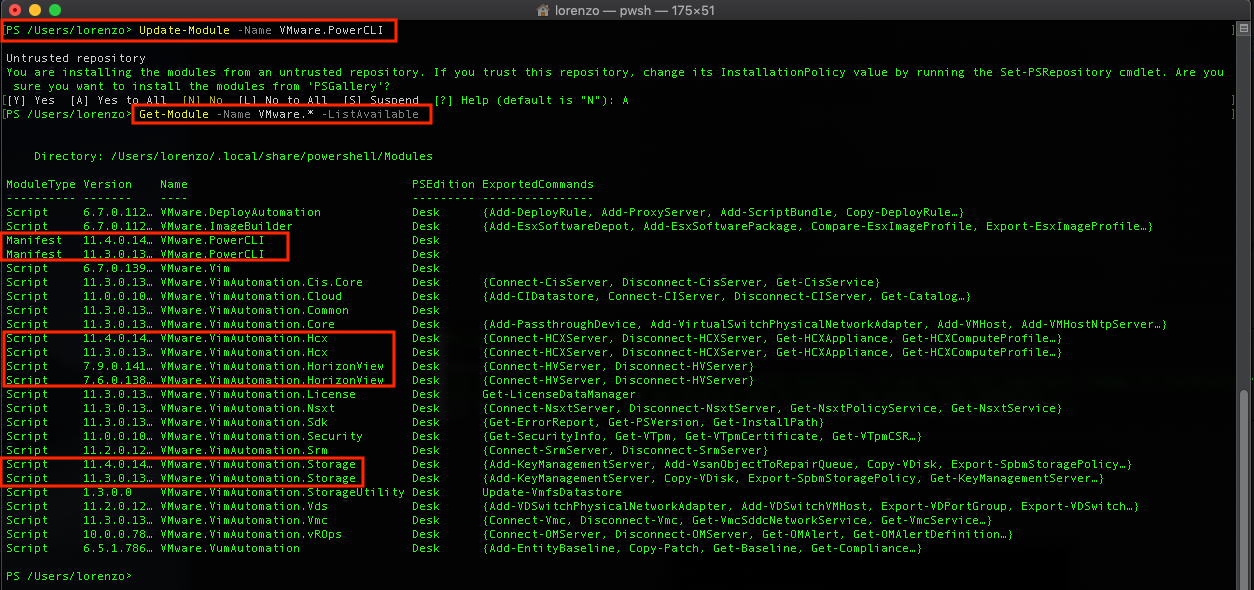
L'update della PowerCLI di per se è semplice, come indicato anche in un mio precedente post è sufficiente lanciare il comando 'Update-Module -Name VMware.PowerCLI' ... accettare premendo 'A' e listare i moduli disponibili sul sistema con il comando 'Get-Module -Name VMware.* -ListAvailable'


... e come per le precedenti versioni, utilizzando il comando Update-Module per aggiornare i moduli, le versioni esistenti non vengono rimosse. Come vediamo dall'immagine sopra ci sono righe che contengono gli stessi moduli ma con diverse versioni.

Esattamente come indicato nel precedente post "PowerCLI 11.0.0 Updates - Automatic script to remove unnecessary modules" procedo con la rimozione dei moduli non più necessari; utilizzando lo script per la rimozione automatica dei moduli più vecchi.

Lo script è stato modificato per avere un Output migliorato, nel seguente modo
#!/usr/local/bin/pwsh 
########################################################################################
#  File  : PurgeDuplicatePowerCliModules.ps1
#  Author: Lorenzo Moglie
#  Date  : 17.10.2018
#  Update : 26.08.2018
#  Version     : 1.5.0.0
#  Disclaimer  : The script is provided as is, use at your own risk.
#  Description : This script list the VMware Modules Available into a TXT file. Read 
#                the txt file, line by line and comparing the duplicate modules 
#                uninstalling the older version
#######################################################################################

Get-Module -Name VMware.* -ListAvailable | select Name,Version > ModuleList.txt
$NameStr = ""
$VersionApp = ""
$Report = @()
Get-Content ./ModuleList.txt | where {$_ -ne ""} | ForEach-Object { 
 $line=[regex]::Replace($_, "\s+", " ")
 $NameModule,$VersionModule = $line.split(' ')
 $tempModule=@{}
 if($NameStr -match $NameModule) {  
     $tempModule.NameModule = $NameModule
     $tempModule.VerOne = $VersionModule
     $tempModule.VerTwo = $VersionApp
     if ([System.Version]::Parse($VersionModule) -lt [System.Version]::Parse($VersionApp)){
      $tempModule.Removed_Ver = $VersionModule
      Invoke-Expression  "Uninstall-Module -Name $NameModule -RequiredVersion $VersionModule -force"
     } else {
      $tempModule.Removed_Ver = $VersionApp
      Invoke-Expression  "Uninstall-Module -Name $NameModule -RequiredVersion $VersionApp -force"
     }
     $temp = New-Object -TypeName PSObject -Property $tempModule
     $Report += $temp
 }
 $NameStr = $NameModule
 if (($VersionModule -match "Version") -Or ($VersionModule -match "-------")) {
   # Do Nothing 
 } else {
   $VersionApp = $VersionModule
 }
}
$Report | Select NameModule, VerOne, VerTwo, Removed_Ver | Format-Table -AutoSize 
rm ./ModuleList.txt


L'output è il seguente :

That's it.

mercoledì 14 agosto 2019

PowerShell script to retrieve information on VM

Problema
Recentemente mi è capitato di dover recuperare velocemente tramite script PowerShell alcune informazioni come:
  1. Nome Virtual Machine (Inventario vCenter)
  2. Sistema Operativo
  3. Indirizzo IP
  4. Nome host della VM (FQDN)
  5. Indirizzo MAC
per le Virtual Machine presenti in un determinato Datacenter.

Soluzione
Di seguito lo script in powershell per fare questo.
Connect-VIServer -Server <VCSA> -User <Userrname> -Password <Password>
$DTC = "<Datacenter>"

$Report = @()
ForEach ($VM in (Get-Datacenter $DTC) | Get-VM) {
 $tempvm=@{}
 $tempvm.Name = $VM.Name
 $tempvm.GuestOS = If (!$VM.Guest.OSFullName) {"Tools Not Running\Unknown"} Else {$VM.Guest.OSFullName}
 $tempvm.IP = If (!$VM.Guest.IPAddress[0]) {"Tools Not Running\Unknown"} Else {$VM.Guest.IPAddress[0]}
 $tempvm.FullName = If (!$VM.Guest.hostname) {"Tools Not Running\Unknown"} Else {$VM.Guest.hostname}
 $tempvm.MacAddress = (Get-NetworkAdapter -VM $VM.Name).MacAddress
 #$tempvm.CustomFields = $VM.CustomFields
 $temp = New-Object -TypeName PSObject -Property $tempvm
 $Report += $temp
} 
$Report | Select Name, GuestOS, IP, FullName, MacAddress |  Sort Name | Format-Table -AutoSize #Output on Screen
#$Report | Select Name, GuestOS, IP, FullName, MacAddress |  Sort Name | export-csv ".\Export-VMInfo.csv" #Output on file
Come possibile vedere dallo script sopra, l'output viene mostrato in formato tabella direttamente a video, ma può anche essere esportato e salvato in un file .CSV.


That's it!

giovedì 1 agosto 2019

PowerCli to configure and modify Syslog on Hosts ESXi - "update"

Qualche tempo fa ho scritto un post sul come configurare/modificare tramite powercli l'entry syslog degli host ESXi.
Tuttavia l'output che si ottiene non permette di verificare a quale host ESXi si riferisce la configurazione. Modificando gli script nel seguente modo possiamo ottenere il seguente risultato:

Ottenere Informazioni (attuali impostazioni)
foreach ($ESXi in Get-VMHost) {
 Get-AdvancedSetting -Name "Syslog.global.logHost" -Entity $ESXi.Name | Select @{L='Host';E={$ESXi.Name}}, Value
} Format-Table -AutoSize


Impostare syslog
foreach ($ESXi in Get-VMHost) {
 Get-AdvancedSetting -Name "Syslog.global.logHost" -Entity $ESXi.Name | Set-AdvancedSetting -Value "udp://10.1.1.1:514" -Confirm:$false | Select @{L='Host';E={$ESXi.Name}}, Value
} Format-Table -AutoSize


That's it!

lunedì 8 luglio 2019

Unconventional way to use HOL

Essendo il mio Home Lab "temporarily out of service" ... mi avvalgo dell'utilizzo degli HOL.
Tutti conosciamo gli "Hands-on Labs" di VMware, sono dei laboratori pre configurati che VMware mette a disposizione degli utenti per testare/verificare ed/o imparare le nuove funzionalità introdotte nei propri prodotti. Seguendo la guida passo-passo si viene guitati nell'utilizzo di tali funzionalità.
Tuttavia non sempre ci sono laboratori pronti per testare tutto ciò che vogliamo. Nel mio caso avevo la necessità di testare le nuove Cmdlets messe a disposizione per SRM PowerCLI descritte in questo sito. Non disponendo di un LAB pre-configurato ad-hoc, ho trovato ricercato un il LAB (HOL-1905-01-SDC - VMware Site Recovery Manager - Data Center Migration and Disaster Recovery) dove è possibile scoprire ed imparare tutto quello che c'è da sapere su VMware Site Recovery Manager (SRM) 8.1.

Effettuato l'accesso al laboratorio, vado a creare la stessa struttura file scaricata dal sito (semplicemente dei file vuoti). Come mostrato nella seguente immagine.


Trasferisco tramite il bottone "INVIA TESTO" i file inviando il testo copiato dal file originale.


Utilizziamo il NOTEPAD (o qualsiasi applicazione che gestisce i file TXT), per editare i file precedentemente creati ed accettare lo streaming di testo che stiamo per inviare .... copiamo il testo del file che vogliamo trasferire, lo incolliamo nell'apposito box "INVIARE UN TESTO ALLA CONSOLE" e premiamo "INVIA" (come mostrato sotto). Attendiamo che tutto il testo sia stato copiato remotamente (questa attività potrebbe richiedere un pò di tempo dipende dalla velocità della connessione) salviamo il file.


Ripetiamo la stessa operazione per il file successivo, fino a quando non abbiamo terminato di trasferire tutti i file necessari.

Possiamo editare i file anche con "Windows PowerShell ISE"


Apriamo la PowerSwhell ed importiamo il modulo
PS C:\> Import-Module -Name C:\LM\Meadowcroft.Srm.psd1
.... provvediamo ad inserire le credenziali lanciando il comando
$creential = Get-Credential


Possiamo lanciare il comando di connessione all'SRM.
PS C:\> Connect-SrmServer -Credential $credential -RemoteCredential $credential


Stabilita la connessione lanciamo il comando oggetto di questo test: "la possibilità di gestire l'orchestrazione/l'attivazione del Plan SRM di attivazione del Disaster Recovery via PowerCLI".
Get-SrmRecoveryPlan -Name "Instruction to Site Recovery Manager" | Start-SrmRecoveryPlan -RecoveryMode Test


Come possibile vedere dalla successiva Immagine, abbiamo attivato il disaster Recovery Plan di SRM via PowerCLI.


Questo è tutto. Abbiamo visto un modo diverso di utilizzare gli Hands-On-Lab di VMware.

giovedì 18 ottobre 2018

PowerCLI 11.0.0 Updates - Automatic script to remove unnecessary modules


Disclaimer: Some of the procedures described below is not officially supported by VMware. Use it at your own risk.

L'11 Ottobre scorso è stata rilasciata la nuova versione PowerCLI 11.0.0 con un impressionante numero di novità ed aggiornamenti:

  • Added a new Security module
  • Added new cmdlets for Host Profiles
  • Added a new cmdlet to interact with NSX-T in VMware Cloud on AWS
  • Support for vSphere 6.7 Update 1
  • Support for NSX-T 2.3
  • Support for Horizon View 7.6
  • Support for vCloud Director 9.5
  • Multiplatform support for the Cloud module
  • Updated the Get-ErrorReport cmdlet
  • Removed the PCloud module
  • Removed the HA module
maggiori informazioni possono essere trovare sul blog ufficiale VMware a questo link.

L'update della PowerCLI di per se è semplice, come indicato anche in un mio precedente post è sufficiente lanciare il comando 'Update-Module -Name VMware.PowerCLI' ...


... e come per le precedenti versioni, se si utilizza Update-Module per aggiornare i moduli, le versioni esistenti non vengono rimosse (vedi Update a PowerCLI Module). Come vediamo dall'immagine sotto ci sono righe che contengono gli stessi moduli ma con diverse versioni.

Esattamente come indicato nel precedente post procedo con la rimozione dei moduli non più necessari; con la differenza che questa volta, ho realizzato un piccolo script in PowerShell per aiutarmi con l'identificazione dei moduli duplicati e la rimozione di quelli con versione inferiore.

Lo script di seguito è stato testato su Mac ....

#!/usr/local/bin/pwsh 
########################################################################################
#  File  : PurgeDuplicatePowerCliModules.ps1
#  Author: Lorenzo Moglie
#  Date  : 17.10.2018
#  Version     : 1.0.0.0
#  Disclaimer  : The script is provided as is, use at your own risk.
#  Description : This script list the VMware Modules Available into a TXT file. Read 
#                the txt file, line by line and comparing the duplicate modules 
#                uninstalling the older version
#######################################################################################

Get-Module -Name VMware.* -ListAvailable | select Name,Version > ModuleList.txt

$NameStr = ""
$VersionApp = ""
Get-Content ./ModuleList.txt | where {$_ -ne ""} | ForEach-Object { 
 $line=[regex]::Replace($_, "\s+", " ")
 $NameModule,$VersionModule = $line.split(' ')
 if($NameStr -match $NameModule) {  
  echo "Removing module: $NameModule --> Version One:$VersionModule --- Version Two:$VersionApp "
     if ([System.Version]::Parse($VersionModule) -lt [System.Version]::Parse($VersionApp)){
      echo "Removing version -> $VersionModule"
      Invoke-Expression  "Uninstall-Module -Name $NameModule -RequiredVersion $VersionModule -force"
     } else {
      echo "Removing version -> $VersionApp"
      Invoke-Expression  "Uninstall-Module -Name $NameModule -RequiredVersion $VersionApp -force"
     }
     echo ""
 }
 $NameStr = $NameModule
 if (($VersionModule -match "Version") -Or ($VersionModule -match "-------")) {
   # Do Nothing 
 } else {
   $VersionApp = $VersionModule
 }
}
rm ./ModuleList.txt
Prima di lanciare il file "PurgeDuplicatePowerCliModules.ps1" modifichiamo i permessi in questo modo ...
LIF:Desktop lorenzo$ chmod +x PurgeDuplicatePowerCliModule.ps1 

... lanciamo lo script .....
LIF:Desktop lorenzo$ ./PurgeDuplicatePowerCliModule.ps1 

In fine. Verifichiamo che i moduli duplicati siano stati correttamente rimossi ....

LIF:Desktop lorenzo$ pwsh 
PowerShell v6.0.2
Copyright (c) Microsoft Corporation. All rights reserved.

https://aka.ms/pscore6-docs
Type 'help' to get help.

PS /Users/lorenzo/Desktop> Get-Module -ListAvailable VMware.* | Select Version,Name   

That's it.


L'output dello script è stato migliorato in questo post "PowerCLI 11.4.0 Updates - Automatic script to remove unnecessary modules improved"

giovedì 16 agosto 2018

PowerCli to configure and modify Syslog on Hosts ESXi

Problema
Più che un problema, oggi ho una necessità di modificare le impostazioni SYSLOG di tutti gli Host ESXi che appartengono ad un determinato vCenter per re-indirizzare i log su di un nuovo syslog server. 
Il parametro da modificare è Syslog.global.logHost ... 


e per modificarlo (se effettuato via Web Client) occorre cliccare sul nodo ESXi, Configure -> Advanced System Settings -> ricercare la variabile syslog; selezionare la riga e quindi cliccare su EDIT


... ed una volta modificato il valore con le nuove impostazioni premere OK. Semplice attività da svolgere se di deve fare su un numero limitato di host ESXi, un pò più lungo e macchinoso se la modifica da fare è su un numero N di nodi dove N è >= 50 host ESXi. Da questa semplice problematica, nasce l'esigenza di poter automatizzare questa procedura tramite la scrittura di qualche riga in PowerShell.  


Soluzione
Nota: Per effettuare i test descritti di seguito ho utilizzato gli HOL (Hands On Labs di VMware); prima di provarli in produzione. Nello specifico ho utilizzato il lab HOL-1911-01-SDC.

Per risolvere quanto appena descritto ho realizzato due scripts, il primo per verificare le impostazioni (con la possibilità di re-indirizzarle su un file esterno l'output in modo da potersi salvare le attuali configurazioni), il secondo per modificare i valori della variabile indicata.

Come prima cosa occorre connettersi al vCenter, aprendo una powershell utilizzando il comando ... Connect-VIServer <vCenter Name>. Nel mio caso Connect-VIServer vcsa-01a.corp.local 

Visualizzazione delle impostazioni.

foreach ($ESXi in Get-VMHost) {
Get-AdvancedSetting -Name "Syslog.global.logHost" -Entity $ESXi.Name | Select Value
}


Sostituzione con il nuovo IP "udp://10.1.1.1:514"...

foreach ($ESXi in Get-VMHost) {
Get-AdvancedSetting -Name "Syslog.global.logHost" -Entity $ESXi.Name | Set-AdvancedSetting -Value "udp://10.1.1.1:514" -Confirm:$false
}


verifichiamo l'avvenuta modifica sia via script  ....


che via web client ...


Problema risolto.

lunedì 11 giugno 2018

MAC - Installare PowerCLI

Nel precedente post abbiamo installato la "PowerShell" su mac, siamo quindi pronti per poter procedere con l'installazione della PowerCLI VMware.

Apriamo il terminale ed accediamo alla PowerShell digitando:

LIF:~ Lorenzo$ pwsh

Possiamo procedere con l'installazione della PowerCli VMware semplicemente digitando:

PS /Users/lorenzo> Install-Module -Name VMware.PowerCLI -Scope CurrentUser  

e confermare con "Y" per procedere con il download e l'installazione dei vari moduli..... per verificare che siano stati correttamente installati lanciare il comando ...

PS /Users/lorenzo> Get-Module -Name VMware.* -ListAvailable

Tutto sembra essere stato installato correttamente. Siamo pronti per poter utilizzare la PowerCLI su nostro macOS.


Alcuni link utili: 
https://ithinkvirtual.com/2018/03/04/install-powershell-and-vmware-powercli-on-centos/
https://blogs.vmware.com/PowerCLI/2018/03/installing-powercli-10-0-0-macos.html
https://notesfrommwhite.net/2018/02/28/installing-powershell-powercli-on-a-mac/


MAC - Installare PowerShell Core

Abbiamo precedentemente installato il tool (homebrew) necessario per procedere con l'installazione della PowerShell Core come indicato da documentazione Microsoft.

La successiva componente che dobbiamo installare per poter installare PowerShell e successivamente la PowerCLI, è Homebrew-Cask. Procediamo come indicato di seguito:


LIF:~ Lorenzo$ brew tap caskroom/cask


e continuiamo con l'installare la PowerShell

LIF:~ Lorenzo$ brew cask install powershell

Se tutto è andato correttamente ....


Verifichiamo che tutto funzioni correttamente lanciando il comando ...

LIF:~ Lorenzo$ pwsh

Come possiamo vedere la PowerShell installata in questo caso è la v6.0.2, tuttavia per avere maggiori dettagli sulla PowerShell installata possiamo digitare direttamente dal prompt della pwsh:


PS /Users/lorenzo> $PSVersionTable 


Verifichiamo i moduli installati di default 

PS /Users/lorenzo> Get-Module * -ListAvailable


Nel prossimo post procederemo con l'installazione della PowerCli VMware.

martedì 17 aprile 2018

Disconnect all CD Drives on all VMs of the Cluster

Problema
Spesso capita che gli utenti a seguito di installazioni e/o aggiornamenti lascino i CD agganciati alle VM, e questo può causare dei problemi. In caso di DRS attivo in modalità "Fully Automated" VMs con CD-ROM  attivi non migrano da un host all'altro; stessa condizione quando si ha la necessità di mettere in "Maintenance" un nodo.


Soluzione
Per risolvere il problema, si è deciso di creare due script in powershell. Il primo script "ListVMsWithDrive.ps1" per ottenere la lista delle VMs che ha i CD-ROM connessi producendo come output un file di testo che può essere editato ed utilizzato come input del successivo script "DisconnectDrive.ps1" per la rimozione dei CD-ROM dalle VM contenute nel file.

Di seguito lo script "ListVMsWithCDDrive.ps1" per avere una lista delle VMs con i CD-ROM connessi.

########################################################################################
#  File  : ListVMsWithCDDrive.ps1
#  Author: Lorenzo Moglie
#  Date  : 17.04.2018
#  Description : The output of the script is a txt file, containing the list of VMs with 
#                the CD-Rom configured for that cluster
#######################################################################################
$vCenter = "<VIRTUALCENTER>"
$CLS = "<CLUSTER-NAME>"
$User = "<USERNAME>"
$Password = "<PASSWORD>"
$VMlist = ".\VMlist.txt"
Connect-VIServer -Server $vCenter -User $User -password $Password | Out-Null
#List of VMs with CD-ROM connected for the whole vCenter
#Get-VM | Get-CDDrive | Where {$_.ISOPath -ne $null} | Sort-Object -Unique ParentID | FT -AutoSize Parent, IsoPath 
#List of VMs with CD-ROM connected only for the specified Cluster - Output on TXT file
#The file can be used as input od the script DisconnectDrive.ps1
Get-VM -Location $CLS  | Get-CDDrive | Where {$_.ISOPath -ne $null} | Sort-Object -Unique ParentID | FT -AutoSize Parent | Out-File $VMlist
#List of VMs with CD-ROM connected - Output on TXT file 
#The file can be used as input od the script DisconnectDrive.ps1
#Get-VM | Get-CDDrive | Where {$_.ISOPath -ne $null} | Sort-Object -Unique ParentID | FT -AutoSize Parent | Out-File $VMlist
Disconnect-VIServer * -Confirm:$false 

Di seguito lo script "DisconnectDrive.ps1" per disconnettere i CD-ROM


########################################################################################
#  File  : DisconnectDrive.ps1
#  Author: Lorenzo Moglie
#  Date  : 17.04.2018
#  Description : This script disconnect the CD-ROM from the VMs present in the input 
#                file
#######################################################################################
$vCenter = "<VIRTUALCENTER>"
$CLS = "<CLUSTER-NAME>"
$User = "<USERNAME>"
$Password = "<PASSWORD>"
$VMlist = ".\VMlist.txt"
Connect-VIServer -Server $vCenter -User $User -password $Password | Out-Null
foreach($VM in Get-Content $VMlist) {
    if ($VM -ne $null) {
        if (($VM.TrimEnd() -contains "Parent") -or ($VM.TrimEnd() -contains "------")){       
        } else {
            Get-VM -Name $VM.TrimEnd() |Get-CDDrive | Where {$_.ISOPath -ne $null} | Set-CDDrive -NoMedia -Confirm:$false 
        }
    }
}
Disconnect-VIServer * -Confirm:$false 
Si è deciso di creare due script proprio per avere la possibilità di decidere su quale VM andare o meno a rimuovere il CD-ROM.

Se non si ha questo tipo di necessità e si vuole disconnettere il CD-ROM sull'intero DataCenter è possibile lanciare il comando di seguito:

 Get-VM | Get-CDDrive | Where {$_.ISOPath -ne $null} | Set-CDDrive -NoMedia -Confirm:$false 


.