Visualizzazione post con etichetta PowerCLI. Mostra tutti i post

lunedì 2 gennaio 2023

How to retrieve the WWPN of a bunch of ESXi hosts using PowerShell

Issue


I need to quickly retrieve the WWNs of a list of ESXi hosts (not managed by a vCenter)

Solution


To solve this, I thought about making a script in powershell that connects to each ESXi hosts presents in "host-list.txt" file and retrieves the necessary information. As outcome, we create a csv file "wwpn-list.csv" with all gathered information.
What I'm assuming here, in my script is that all ESXi hosts have the same username and password (in my case respectively root and VMware1!).
Below is the script:


# get-wwpn.ps1
# 
# Lorenzo Moglie 
# Version: 1.0 (29.12.2022)
#
$user = 'root'
$pswd = 'VMware1!'
$Hosts = Get-Content -Path '.\host-list.txt'
$report = @()
foreach ($host in $Hosts){
	#Write-Host "Host:", $host
	Connect-VIServer -Server $host -User $user -Password $pswd
	$temp = Get-VMhost -Name $host | Get-VMHostHBA -Type FibreChannel | Select VMHost, Device, @{N "WWN";E={"{0:X}" -f $_.PortWorldWideName}} | Sort VMHost,Device
	$wwpn = @{}
	$wwpn.VMHost = $temp.VMHost.Name[0]
	$wwpn.vmhba64 = $temp.WWN[0]
	$wwpn.vmhba65 = $temp.WWN[1]
	$wwn = New-Object -TypeName PSObject -Property $wwpn
	Sreport += Swwn
	Disconnect-VIServer -Confirm:$false
}
$report | Select VMHost, vmhba64, vmhba65 | Sort-Object -Property VMHost | Export-Csv .\wwpn-list.csv

That's it.

lunedì 25 luglio 2022

Clone a VM via PowerCLI

Issue


What I need today? I just need to create a simple PowerCLI script to clone a VM, after it has been powered off.

Solution


Disclaimer: Use it at your own risk.

The following script is used to create a clone of a specific VM (after it has been shut down).
Before running, replace the following fields with your information:

<VCENTER>: Source vCenter (where the VM is running)
<USERNAME>: Username to connect to the vCenter (whit right permition to clone)
<PASSWORD>: Password of the user
<DATASTORE_TARGET>: Datastore target where. to place the cloned VM

Below the script:
##############################################
# LM: Use it at your own risk
# Clone a VM on the specific Datastore and attach the suffix "_Clone" to the VM Name (cloned)
##############################################

if ($args[0].length -gt 0) {
 $vmName = $args[0]
} else {
 Write-Host -ForegroundColor red "Usage: .\CloneVM.ps1 <VM_Name>"
 exit 40
}

Connect-VIServer -Server <VCENTER> -User <USERNAME> -Password <PASSWORD>

$vm = Get-VM -Name $vmName

if ((Get-VM -Name $vmName).PowerState -eq "PoweredOff") {
  Write-Host -foreground Green "- VM "$vmName "is already OFF"
}
else
{
    Write-Host -foreground Red "- VM "$vmName "is shutting down ..." 
    $vm | Shutdown-VMGuest  -Confirm:$false
    While ((Get-VM -Name $vmName).PowerState -ne "PoweredOff") {
        Write-Host -foreground yellow "... waiting for" $vmName "to power off"
    sleep 5
    }
}

$ds = Get-Datastore -Name <DATASTORE_TARGET>
$esx = Get-Cluster -VM $vmName | Get-VMHost | Get-Random
$vm = New-VM -VM $vmName -Name $vmName'_CLONE' -Datastore $ds -VMHost $esx

Set-VM $vmName -name $vmName'_Clone' -confirm:$false

Disconnect-VIServer -Server * -Force -Confirm:$false

That's it.

giovedì 12 agosto 2021

How to set by script a new unique UUID.bios

Issue


A colleague of mine asked me help with creating a powershell script, to change the UUID.bios value in the .vmx file due to a problem related to VMs restored from backups with the same UUID. The issue is related to the fact that both VMs (source and recovered) with the same UUID.bios are present on the execution environment at the same time.

Solution


Googling around I found an old thread on the VMNT community answered by Luc Dekens.
There are several ways of doing in it, from manual to programmatic (as can be seen in this KB article)

I've chosen to write a PowerCLI script. So, I took the Luc's code (thanks for sharing with the community) and readjusted for my needs as described below.
The steps to follow are:
  • shutdown the VM
  • get the current UUID
  • change the UUID (with one autogenerated)
  • power on the VM

The new UUID is generated by a static prefix plus the date in the format Year, Month, Day, Hours, Minutes, Seconds, where first 2 digits are taken for all of them (example Get-Date -UFormat "%y%m%d%H%M%S").
############################################################################################
#
#  File  : Change-UUID.BIOS.ps1
#  Author: Lorenzo Moglie
#  Date  : 12.08.2021
#  Description : This script disconnect can be used for generate a new UUID for the target VM
#
#  Usage: .\Change-UUID.BIOS.ps1 <vm-name>
#
############################################################################################

if ($args[0].length -gt 0) {
 $vmName = $args[0]
} else {
 Write-Host -ForegroundColor red "Usage: .\Change-UUID.BIOS.ps1 <VM Name>"
 exit 40
}


Connect-VIServer -Server <VCENTER> -User <USERNAME> -Password <PASSWORD>

$vm = Get-VM -Name $vmName
#Write-Host OLD.UUID=$($vm.extensiondata.config.uuid)

if ((Get-VM -Name $vmName).PowerState -eq "PoweredOff") {
  Write-Host -foreground Green "- VM"$vmName "is already OFF"
}
else
{
    Write-Host -foreground Red "- VM"$vmName "is shutting down ..." 
    $vm | Shutdown-VMGuest  -Confirm:$false
    While ((Get-VM -Name $vmName).PowerState -ne "PoweredOff") {
        Write-Host -foreground yellow "... waiting for" $vmName "to power off"
    sleep 5
    }
}

$newUuid = "6d6f676c-6965-6c31-2e30-" + $(Get-Date -UFormat "%y%m%d%H%M%S")

$spec = New-Object VMware.Vim.VirtualMachineConfigSpec
$spec.uuid = $newUuid
$vm.Extensiondata.ReconfigVM_Task($spec)

Write-Host -foreground Green "- VM"$vmName "successfully updated."
Write-Host "OLD.UUID="$($vm.extensiondata.config.uuid)
Write-Host "NEW.UUID="$newUuid

Write-Host -foreground Green "- VM"$vmName": Restarting in progress ...."
Start-VM -VM $vm -RunAsync 

Disconnect-VIServer -Server * -Force -Confirm:$false

let's see below how the outcome looks like ...

a double check.

UUID.BIOS changed ... Everything look fine.

That's it.

giovedì 2 aprile 2020

VMs with active Snapshots

Issue
I need to get a list of VMs with active snapshots.

Solution
Below a very simple PowerCLI script that will return the list of snapshots that are in the environment.
First of all, after you have opened a powershell terminal (doesn't mind if Windows/Linux/MacOS), you need to connect to the vCenter Server, providing a proper User and Password:

Connect-VIServer -Server “IP/hostname/FQDN”
Once connected you can execute the following command:
Get-VM | Get-Snapshot | Select VM, Name, Created, @{N="SizeGB";E={[math]::round($_.SizeGB,4)}}


That's it.

lunedì 9 marzo 2020

VMs Memory information

Problem
I need a fast way to check the Memory usage of the last 30 days to understand if there are more RAMs than needed in the VMs.

Solution
Below a very simple PowerCLI script that will return information about Minimum, Maximum and Avarage Memory of the last 30 days.
First of all, after you have opened a powershell terminal (doesn't mind if Windows/Linux/MacOS), you need to connect to the vCenter Server, providing a proper User and Password:

Connect-VIServer -Server “IP/hostname/FQDN”
Once connected you can execute the following command:

$Report = @()
foreach ($VM in Get-VM) {
  $vmstat=@{}
 $vmstat.VMname = $vm.Name     
 $statmem = Get-Stat -Entity ($vm)-start (get-date).AddDays(-30) -Finish (get-date).AddDays(-1) -MaxSamples 10000 -stat mem.usage.average
 $mem = $statmem | Measure-Object -Property value -Average -Maximum -Minimum
 $vmstat.MemMax = [math]::round($mem.Maximum,2)
 $vmstat.MemAvg = [math]::round($mem.Average,2)
 $vmstat.MemMin = [math]::round($mem.Minimum,2)
 $temp = New-Object -TypeName PSObject -Property $vmstat
    $Report += $temp
} 
$Report | Select VMname, MemMax, MemAvg, MemMin | Format-Table -AutoSize 


That's it.

martedì 3 marzo 2020

VM Hardware and Tools Status,Version

Problem
I need to check and compare for each Virtual Machine the version of the Virtual Hardware, the Status and the Version of the VMware Tools.

Solution
The easiest way I've found is to make some a simple script like the following via PowerCLI.

$Report = @()
foreach ($VM in Get-VM) {
  $vmHW=@{} 
 $temp = Get-View $VM |  Select Name, @{N="HWVersion";E={$_.Config.version}},  @{N='VMwareToosStatus';E={$_.Guest.ToolsStatus}}, @{N="VMwareToolsVersion";E={$_.Config.Tools.ToolsVersion}}
 $vmHW.VMname = $temp.Name
 $vmHW.HWVersion = $temp.HWVersion
 $vmHW.VMwareToosStatus = $temp.VMwareToosStatus
 $vmHW.VMwareToolsVersion = $temp.VMwareToolsVersion
 $tempNObject = New-Object -TypeName PSObject -Property $vmHW
    $Report += $tempNObject
} 
$Report | Select @{N="VM Name";E={$_.VMname}}, @{N="HW Version";E={$_.HWVersion}},  @{N='VMware Tools Status';E={$_.VMwareToosStatus}}, @{N="VMware Tools version";E={$_.VMwareToolsVersion}}  | Sort-Object -Unique "VM Name" | Format-Table -AutoSize 


That's it.

sabato 5 ottobre 2019

PowerCLI - Check Netflow settings

Problema
Ho la necessità di verificare le impostazioni del parametro "Netflow" sui vari virtual distributed portgroup tramite PowerCLI.

Soluzione
Cercando in rete ho trovato quello che fa la mio caso "DISABLING NETFLOW WITH POWERCLI" direttamente scritto da Alan Renouf.

Non mi resta che verificare le impostazioni Netflow di tutti i VDPortGroups con il comando .....

Get-VDPortgroup | Select Name, VirtualSwitch, @{Name="NetflowEnabled";Expression={$_.Extensiondata.Config.defaultPortConfig.ipfixEnabled.Value}}


That's it.

lunedì 26 agosto 2019

PowerCLI 11.4.0 Updates - Automatic script to remove unnecessary modules improved


Disclaimer: Some of the procedures described below is not officially supported by VMware. Use it at your own risk.

Il 20 Agosto scorso è stata rilasciata la nuova versione PowerCLI 11.4.0 che include numerosi nuovi miglioramenti. Il modulo Horizon View è stato aggiornato per supportare la versione più recente di Horizon View che è la versione 7.9. Esistono alcuni aggiornamenti al modulo Storage, inclusi gli aggiornamenti e tre nuovi cmdlet. Infine, ci sono numerosi aggiornamenti ai cmdlet nel modulo HCX.

Con PowerCLI 11.4.0 vengono forniti i seguenti aggiornamenti:

  • Add support for Horizon View 7.9
  • Added new cmdlets to the Storage module
  • Updated Storage module cmdlets
  • Updated HCX module cmdlets

maggiori informazioni possono essere trovare sul blog ufficiale VMware a questo link.

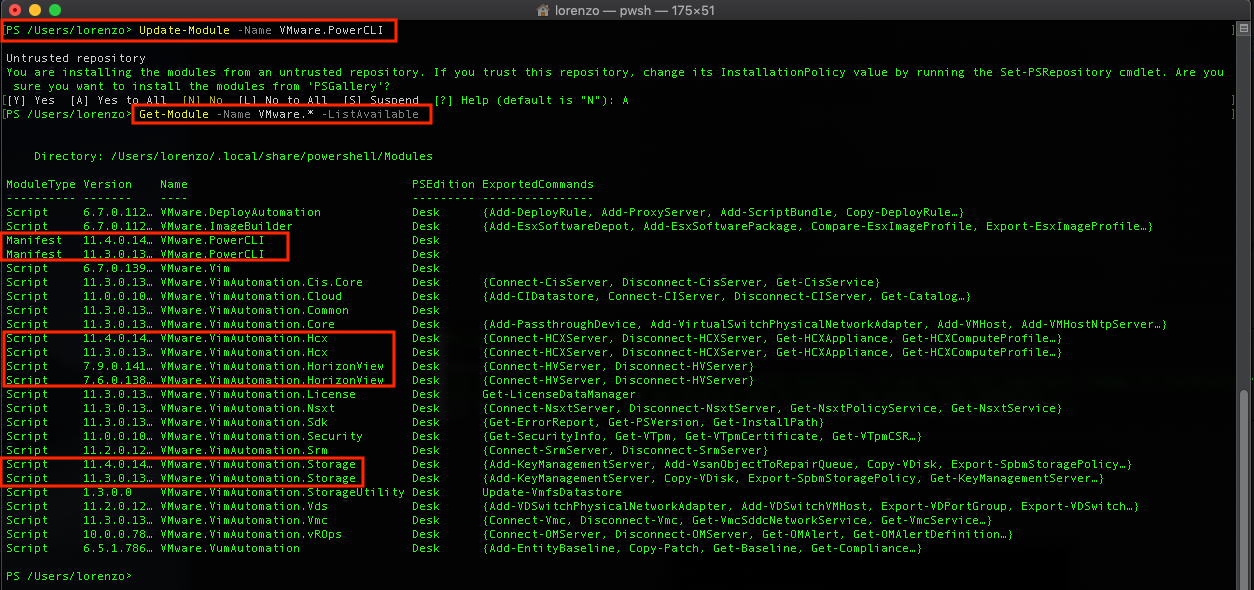
L'update della PowerCLI di per se è semplice, come indicato anche in un mio precedente post è sufficiente lanciare il comando 'Update-Module -Name VMware.PowerCLI' ... accettare premendo 'A' e listare i moduli disponibili sul sistema con il comando 'Get-Module -Name VMware.* -ListAvailable'


... e come per le precedenti versioni, utilizzando il comando Update-Module per aggiornare i moduli, le versioni esistenti non vengono rimosse. Come vediamo dall'immagine sopra ci sono righe che contengono gli stessi moduli ma con diverse versioni.

Esattamente come indicato nel precedente post "PowerCLI 11.0.0 Updates - Automatic script to remove unnecessary modules" procedo con la rimozione dei moduli non più necessari; utilizzando lo script per la rimozione automatica dei moduli più vecchi.

Lo script è stato modificato per avere un Output migliorato, nel seguente modo
#!/usr/local/bin/pwsh 
########################################################################################
#  File  : PurgeDuplicatePowerCliModules.ps1
#  Author: Lorenzo Moglie
#  Date  : 17.10.2018
#  Update : 26.08.2018
#  Version     : 1.5.0.0
#  Disclaimer  : The script is provided as is, use at your own risk.
#  Description : This script list the VMware Modules Available into a TXT file. Read 
#                the txt file, line by line and comparing the duplicate modules 
#                uninstalling the older version
#######################################################################################

Get-Module -Name VMware.* -ListAvailable | select Name,Version > ModuleList.txt
$NameStr = ""
$VersionApp = ""
$Report = @()
Get-Content ./ModuleList.txt | where {$_ -ne ""} | ForEach-Object { 
 $line=[regex]::Replace($_, "\s+", " ")
 $NameModule,$VersionModule = $line.split(' ')
 $tempModule=@{}
 if($NameStr -match $NameModule) {  
     $tempModule.NameModule = $NameModule
     $tempModule.VerOne = $VersionModule
     $tempModule.VerTwo = $VersionApp
     if ([System.Version]::Parse($VersionModule) -lt [System.Version]::Parse($VersionApp)){
      $tempModule.Removed_Ver = $VersionModule
      Invoke-Expression  "Uninstall-Module -Name $NameModule -RequiredVersion $VersionModule -force"
     } else {
      $tempModule.Removed_Ver = $VersionApp
      Invoke-Expression  "Uninstall-Module -Name $NameModule -RequiredVersion $VersionApp -force"
     }
     $temp = New-Object -TypeName PSObject -Property $tempModule
     $Report += $temp
 }
 $NameStr = $NameModule
 if (($VersionModule -match "Version") -Or ($VersionModule -match "-------")) {
   # Do Nothing 
 } else {
   $VersionApp = $VersionModule
 }
}
$Report | Select NameModule, VerOne, VerTwo, Removed_Ver | Format-Table -AutoSize 
rm ./ModuleList.txt


L'output è il seguente :

That's it.

mercoledì 14 agosto 2019

PowerShell script to retrieve information on VM

Problema
Recentemente mi è capitato di dover recuperare velocemente tramite script PowerShell alcune informazioni come:
  1. Nome Virtual Machine (Inventario vCenter)
  2. Sistema Operativo
  3. Indirizzo IP
  4. Nome host della VM (FQDN)
  5. Indirizzo MAC
per le Virtual Machine presenti in un determinato Datacenter.

Soluzione
Di seguito lo script in powershell per fare questo.
Connect-VIServer -Server <VCSA> -User <Userrname> -Password <Password>
$DTC = "<Datacenter>"

$Report = @()
ForEach ($VM in (Get-Datacenter $DTC) | Get-VM) {
 $tempvm=@{}
 $tempvm.Name = $VM.Name
 $tempvm.GuestOS = If (!$VM.Guest.OSFullName) {"Tools Not Running\Unknown"} Else {$VM.Guest.OSFullName}
 $tempvm.IP = If (!$VM.Guest.IPAddress[0]) {"Tools Not Running\Unknown"} Else {$VM.Guest.IPAddress[0]}
 $tempvm.FullName = If (!$VM.Guest.hostname) {"Tools Not Running\Unknown"} Else {$VM.Guest.hostname}
 $tempvm.MacAddress = (Get-NetworkAdapter -VM $VM.Name).MacAddress
 #$tempvm.CustomFields = $VM.CustomFields
 $temp = New-Object -TypeName PSObject -Property $tempvm
 $Report += $temp
} 
$Report | Select Name, GuestOS, IP, FullName, MacAddress |  Sort Name | Format-Table -AutoSize #Output on Screen
#$Report | Select Name, GuestOS, IP, FullName, MacAddress |  Sort Name | export-csv ".\Export-VMInfo.csv" #Output on file
Come possibile vedere dallo script sopra, l'output viene mostrato in formato tabella direttamente a video, ma può anche essere esportato e salvato in un file .CSV.


That's it!

giovedì 1 agosto 2019

PowerCli to configure and modify Syslog on Hosts ESXi - "update"

Qualche tempo fa ho scritto un post sul come configurare/modificare tramite powercli l'entry syslog degli host ESXi.
Tuttavia l'output che si ottiene non permette di verificare a quale host ESXi si riferisce la configurazione. Modificando gli script nel seguente modo possiamo ottenere il seguente risultato:

Ottenere Informazioni (attuali impostazioni)
foreach ($ESXi in Get-VMHost) {
 Get-AdvancedSetting -Name "Syslog.global.logHost" -Entity $ESXi.Name | Select @{L='Host';E={$ESXi.Name}}, Value
} Format-Table -AutoSize


Impostare syslog
foreach ($ESXi in Get-VMHost) {
 Get-AdvancedSetting -Name "Syslog.global.logHost" -Entity $ESXi.Name | Set-AdvancedSetting -Value "udp://10.1.1.1:514" -Confirm:$false | Select @{L='Host';E={$ESXi.Name}}, Value
} Format-Table -AutoSize


That's it!

lunedì 8 luglio 2019

Unconventional way to use HOL

Essendo il mio Home Lab "temporarily out of service" ... mi avvalgo dell'utilizzo degli HOL.
Tutti conosciamo gli "Hands-on Labs" di VMware, sono dei laboratori pre configurati che VMware mette a disposizione degli utenti per testare/verificare ed/o imparare le nuove funzionalità introdotte nei propri prodotti. Seguendo la guida passo-passo si viene guitati nell'utilizzo di tali funzionalità.
Tuttavia non sempre ci sono laboratori pronti per testare tutto ciò che vogliamo. Nel mio caso avevo la necessità di testare le nuove Cmdlets messe a disposizione per SRM PowerCLI descritte in questo sito. Non disponendo di un LAB pre-configurato ad-hoc, ho trovato ricercato un il LAB (HOL-1905-01-SDC - VMware Site Recovery Manager - Data Center Migration and Disaster Recovery) dove è possibile scoprire ed imparare tutto quello che c'è da sapere su VMware Site Recovery Manager (SRM) 8.1.

Effettuato l'accesso al laboratorio, vado a creare la stessa struttura file scaricata dal sito (semplicemente dei file vuoti). Come mostrato nella seguente immagine.


Trasferisco tramite il bottone "INVIA TESTO" i file inviando il testo copiato dal file originale.


Utilizziamo il NOTEPAD (o qualsiasi applicazione che gestisce i file TXT), per editare i file precedentemente creati ed accettare lo streaming di testo che stiamo per inviare .... copiamo il testo del file che vogliamo trasferire, lo incolliamo nell'apposito box "INVIARE UN TESTO ALLA CONSOLE" e premiamo "INVIA" (come mostrato sotto). Attendiamo che tutto il testo sia stato copiato remotamente (questa attività potrebbe richiedere un pò di tempo dipende dalla velocità della connessione) salviamo il file.


Ripetiamo la stessa operazione per il file successivo, fino a quando non abbiamo terminato di trasferire tutti i file necessari.

Possiamo editare i file anche con "Windows PowerShell ISE"


Apriamo la PowerSwhell ed importiamo il modulo
PS C:\> Import-Module -Name C:\LM\Meadowcroft.Srm.psd1
.... provvediamo ad inserire le credenziali lanciando il comando
$creential = Get-Credential


Possiamo lanciare il comando di connessione all'SRM.
PS C:\> Connect-SrmServer -Credential $credential -RemoteCredential $credential


Stabilita la connessione lanciamo il comando oggetto di questo test: "la possibilità di gestire l'orchestrazione/l'attivazione del Plan SRM di attivazione del Disaster Recovery via PowerCLI".
Get-SrmRecoveryPlan -Name "Instruction to Site Recovery Manager" | Start-SrmRecoveryPlan -RecoveryMode Test


Come possibile vedere dalla successiva Immagine, abbiamo attivato il disaster Recovery Plan di SRM via PowerCLI.


Questo è tutto. Abbiamo visto un modo diverso di utilizzare gli Hands-On-Lab di VMware.

giovedì 18 ottobre 2018

PowerCLI 11.0.0 Updates - Automatic script to remove unnecessary modules


Disclaimer: Some of the procedures described below is not officially supported by VMware. Use it at your own risk.

L'11 Ottobre scorso è stata rilasciata la nuova versione PowerCLI 11.0.0 con un impressionante numero di novità ed aggiornamenti:

  • Added a new Security module
  • Added new cmdlets for Host Profiles
  • Added a new cmdlet to interact with NSX-T in VMware Cloud on AWS
  • Support for vSphere 6.7 Update 1
  • Support for NSX-T 2.3
  • Support for Horizon View 7.6
  • Support for vCloud Director 9.5
  • Multiplatform support for the Cloud module
  • Updated the Get-ErrorReport cmdlet
  • Removed the PCloud module
  • Removed the HA module
maggiori informazioni possono essere trovare sul blog ufficiale VMware a questo link.

L'update della PowerCLI di per se è semplice, come indicato anche in un mio precedente post è sufficiente lanciare il comando 'Update-Module -Name VMware.PowerCLI' ...


... e come per le precedenti versioni, se si utilizza Update-Module per aggiornare i moduli, le versioni esistenti non vengono rimosse (vedi Update a PowerCLI Module). Come vediamo dall'immagine sotto ci sono righe che contengono gli stessi moduli ma con diverse versioni.

Esattamente come indicato nel precedente post procedo con la rimozione dei moduli non più necessari; con la differenza che questa volta, ho realizzato un piccolo script in PowerShell per aiutarmi con l'identificazione dei moduli duplicati e la rimozione di quelli con versione inferiore.

Lo script di seguito è stato testato su Mac ....

#!/usr/local/bin/pwsh 
########################################################################################
#  File  : PurgeDuplicatePowerCliModules.ps1
#  Author: Lorenzo Moglie
#  Date  : 17.10.2018
#  Version     : 1.0.0.0
#  Disclaimer  : The script is provided as is, use at your own risk.
#  Description : This script list the VMware Modules Available into a TXT file. Read 
#                the txt file, line by line and comparing the duplicate modules 
#                uninstalling the older version
#######################################################################################

Get-Module -Name VMware.* -ListAvailable | select Name,Version > ModuleList.txt

$NameStr = ""
$VersionApp = ""
Get-Content ./ModuleList.txt | where {$_ -ne ""} | ForEach-Object { 
 $line=[regex]::Replace($_, "\s+", " ")
 $NameModule,$VersionModule = $line.split(' ')
 if($NameStr -match $NameModule) {  
  echo "Removing module: $NameModule --> Version One:$VersionModule --- Version Two:$VersionApp "
     if ([System.Version]::Parse($VersionModule) -lt [System.Version]::Parse($VersionApp)){
      echo "Removing version -> $VersionModule"
      Invoke-Expression  "Uninstall-Module -Name $NameModule -RequiredVersion $VersionModule -force"
     } else {
      echo "Removing version -> $VersionApp"
      Invoke-Expression  "Uninstall-Module -Name $NameModule -RequiredVersion $VersionApp -force"
     }
     echo ""
 }
 $NameStr = $NameModule
 if (($VersionModule -match "Version") -Or ($VersionModule -match "-------")) {
   # Do Nothing 
 } else {
   $VersionApp = $VersionModule
 }
}
rm ./ModuleList.txt
Prima di lanciare il file "PurgeDuplicatePowerCliModules.ps1" modifichiamo i permessi in questo modo ...
LIF:Desktop lorenzo$ chmod +x PurgeDuplicatePowerCliModule.ps1 

... lanciamo lo script .....
LIF:Desktop lorenzo$ ./PurgeDuplicatePowerCliModule.ps1 

In fine. Verifichiamo che i moduli duplicati siano stati correttamente rimossi ....

LIF:Desktop lorenzo$ pwsh 
PowerShell v6.0.2
Copyright (c) Microsoft Corporation. All rights reserved.

https://aka.ms/pscore6-docs
Type 'help' to get help.

PS /Users/lorenzo/Desktop> Get-Module -ListAvailable VMware.* | Select Version,Name   

That's it.


L'output dello script è stato migliorato in questo post "PowerCLI 11.4.0 Updates - Automatic script to remove unnecessary modules improved"

martedì 21 agosto 2018

PowerCLI 10.2.0 Updates - Manual removal of unnecessary modules

Disclaimer: Some of the procedures described below is not officially supported by VMware. Use it at you own risk.

Il 20 Agosto 2018, è stata rilasciata la nuova PowerCLI 10.2.0 con i seguenti aggiornamenti: 
  • Support for NSX-T 2.2
  • Deprecation of the PCloud module, so look for this module to be removed in the future
  • Update to Get-VIEvent to resolve the issue when receiving: Error in deserializing body of reply message for operation 'RetrieveProperties'
maggiori informazioni possono essere trovare sul blog ufficiale VMware a questo link.

L'update della PowerCLI, di per se è semplice. E' sufficiente lanciare il comando...

PS /Users/lorenzo>  Update-Module -Name VMware.PowerCLI
... di fatto per i puristi è da far notare che i "vecchi" moduli non vengono rimossi e/o rimpiazzati dalle nuove versioni; ma restano sul sistema.

Come indicato, anche nella "VMware PowerCLI 10.2.0 User's Guide" nel paragrafo "Update a PowerCLI Module", è consigliato rimuovere i moduli  per poi re- installarli ..... 


Non conoscendo quali sono i moduli che sono stati aggiornati con il rilascio della versione 10.2.0, sarebbe opportuno rimuovere completamente la PowerCLI per poi re-installarla. 

Di seguito utilizzeremo un metodo diverso.... procederemo in primis con l'update della PowerCLI e poi con la rimozione dei vecchi moduli.

Per prima cosa prendiamo visione dei moduli attualmente installati ...


PS /Users/lorenzo> Get-Module -Name  VMware.* -ListAvailable


Procediamo con l'update ...

PS /Users/lorenzo> Update-Module-Name VMware.PowerCLI

e confermiamo premendo "Y". Terminato l'update verifichiamo quali moduli sono presenti sul sistema ...

PS /Users/lorenzo> Get-Module -Name VMware.* -ListAvailable

Come possiamo notare, ci sono dei moduli che sono presenti in più versioni.


Per una corretta rimozione dei dati, verifichiamo come sono le dipendenze della nuova PowerCLI

PS /Users/lorenzo> (Get-Module VMware.PowerCLI -ListAvailable).RequiredModules


Procediamo con la rimozione corretta dei moduli in questo  modo
  1. Prendiamo nota della versione "esatta" del modulo da rimuovere ...
    PS /Users/lorenzo> Get-Module -Name VMware.PowerCLI -ListAvailable | select version

    Nel nostro caso "10.1.1.8827524" .....
  2. .... procediamo con la rimozione forzata del modulo (indipendentemente dalla dipendenze che possa avere).
    PS /Users/lorenzo> Uninstall-Module -Name VMware.PowerCLI -RequiredVersion 10.1.1.8827524 -force

  3. Verifichiamo che sia presente nel sistema solo la versione corretta ... 
    PS /Users/lorenzo> Get-Module -Name VMware.PowerCLI -ListAvailable

  4. Ripetiamo i precedenti punti da 1 a 3 anche per i moduli "VMware.Vim" e "VMware.VimAutomation.Nsxt"
  5. Verifichiamo la lista completa dei moduli corrisponda a quella dei moduli richiesti dalla PowerCLI 10.2.0

    PS /Users/lorenzo> Get-Module VMware* -ListAvailable

-----------------------------------------------------------
Update del post:

come confermato da Kyle Ruddy non c'è la necessità di tenere tutte le vecchie versioni dei moduli installate nel sistema ... 


giovedì 16 agosto 2018

PowerCli to configure and modify Syslog on Hosts ESXi

Problema
Più che un problema, oggi ho una necessità di modificare le impostazioni SYSLOG di tutti gli Host ESXi che appartengono ad un determinato vCenter per re-indirizzare i log su di un nuovo syslog server. 
Il parametro da modificare è Syslog.global.logHost ... 


e per modificarlo (se effettuato via Web Client) occorre cliccare sul nodo ESXi, Configure -> Advanced System Settings -> ricercare la variabile syslog; selezionare la riga e quindi cliccare su EDIT


... ed una volta modificato il valore con le nuove impostazioni premere OK. Semplice attività da svolgere se di deve fare su un numero limitato di host ESXi, un pò più lungo e macchinoso se la modifica da fare è su un numero N di nodi dove N è >= 50 host ESXi. Da questa semplice problematica, nasce l'esigenza di poter automatizzare questa procedura tramite la scrittura di qualche riga in PowerShell.  


Soluzione
Nota: Per effettuare i test descritti di seguito ho utilizzato gli HOL (Hands On Labs di VMware); prima di provarli in produzione. Nello specifico ho utilizzato il lab HOL-1911-01-SDC.

Per risolvere quanto appena descritto ho realizzato due scripts, il primo per verificare le impostazioni (con la possibilità di re-indirizzarle su un file esterno l'output in modo da potersi salvare le attuali configurazioni), il secondo per modificare i valori della variabile indicata.

Come prima cosa occorre connettersi al vCenter, aprendo una powershell utilizzando il comando ... Connect-VIServer <vCenter Name>. Nel mio caso Connect-VIServer vcsa-01a.corp.local 

Visualizzazione delle impostazioni.

foreach ($ESXi in Get-VMHost) {
Get-AdvancedSetting -Name "Syslog.global.logHost" -Entity $ESXi.Name | Select Value
}


Sostituzione con il nuovo IP "udp://10.1.1.1:514"...

foreach ($ESXi in Get-VMHost) {
Get-AdvancedSetting -Name "Syslog.global.logHost" -Entity $ESXi.Name | Set-AdvancedSetting -Value "udp://10.1.1.1:514" -Confirm:$false
}


verifichiamo l'avvenuta modifica sia via script  ....


che via web client ...


Problema risolto.

lunedì 11 giugno 2018

MAC - Installare PowerCLI

Nel precedente post abbiamo installato la "PowerShell" su mac, siamo quindi pronti per poter procedere con l'installazione della PowerCLI VMware.

Apriamo il terminale ed accediamo alla PowerShell digitando:

LIF:~ Lorenzo$ pwsh

Possiamo procedere con l'installazione della PowerCli VMware semplicemente digitando:

PS /Users/lorenzo> Install-Module -Name VMware.PowerCLI -Scope CurrentUser  

e confermare con "Y" per procedere con il download e l'installazione dei vari moduli..... per verificare che siano stati correttamente installati lanciare il comando ...

PS /Users/lorenzo> Get-Module -Name VMware.* -ListAvailable

Tutto sembra essere stato installato correttamente. Siamo pronti per poter utilizzare la PowerCLI su nostro macOS.


Alcuni link utili: 
https://ithinkvirtual.com/2018/03/04/install-powershell-and-vmware-powercli-on-centos/
https://blogs.vmware.com/PowerCLI/2018/03/installing-powercli-10-0-0-macos.html
https://notesfrommwhite.net/2018/02/28/installing-powershell-powercli-on-a-mac/